
hxplain App Frequently Asked Questions (FAQs)
Something is not working, or you have feedback for hxplain
Go to ‘Help’ section in the application, follow the instructions provided here

On Web App
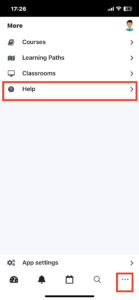
On Mobile App
How can I access hxplain learning platform on a web browser
https://learn.hxplain.co/login/
Compatible on all standard browsers
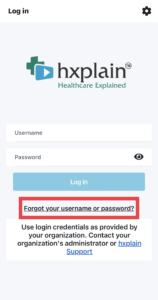
Unable to Login - "Invalid Login, please try again" error
- Remember and enter your Username/Password accurately
- Try again after a few minutes
- If issue persists, click on “Forgotten your username and password” link, follow instructions and create a new password. Then login again.
Unable to Login- Other Error Messages
- Ensure you are connected to the internet
- Try again after sometime
What is the criteria for a member to get enrolled into a course?
- Every course has a recommendation on who should take the course. This is called the Course Enrollment Criteria.
- Learners are enrolled to courses based on this criteria
- Their Role (Nurse, Doctor, Technologist, etc.)
- Their Area of Work (Ward, OP, Medical ICU, Cardiac ICU, Cath Lab, Operation Room, etc.)
- Their Specialty (Cardiology, Orthopaedics, etc.)
- If you believe you are not seeing the courses that your colleague with similar work profile is seeing, please check if your professional information is up-to-date
- For further queries, reach out to hxplain Support
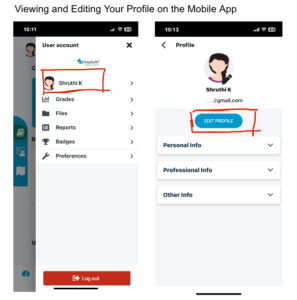
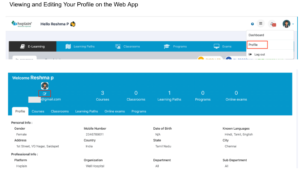
How can I view and update my Profile information?
- Your profile information can be accessed by clicking your profile picture and then clicking on your name
- Review the information frequently in all the sections in your profile to ensure accuracy, as it impacts what courses are recommended for you
- You can edit some fields yourself
- For fields you are not able to update yourself, reach out to hxplain Support
- Based on the field to be updated, hxplain may require additional supporting documents from your side
How can I view my team member’s course progress?
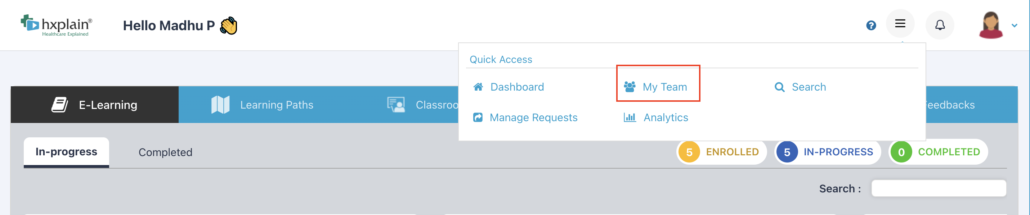
- If you are a reporting manager, you can view your team reportees course completion progress in the My Team view.
- NOTE: My Team view is available on the web version only. You can access it via a web browser (Chrome, Firefox, Safari, Edge)
- Getting to My Team Click “My Team” from the hambuger menu and click My Team
- Criteria for the bubble colours
- Green : =100% course completion. For example, 10 courses complete off the 10 enrolled
- Blue: >=50 and =<99.9% course completion. For example, 5-9 courses complete off the 10 enrolled
- Red: <50% course completion. For example, 1-4 courses complete off the 10 enrolled
Team View
Organization Level Reports
- Reports are available on the web browser based application (and not on the mobile apps)
- If you are responsible for viewing reports of your organization’s learning progress on hxplain, please ensure you have the appropriate permissions in hxplain application
- You can check this by clicking the downward arrow next to your profile picture. You should see two roles
- Your default role as a Learner
- Your role as your hospital’s Organization Management. If you do not see this second role, please reach out to hxplain support to provide you with this access

-
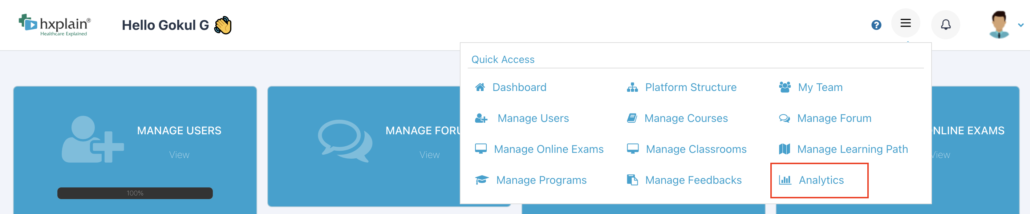
- Select the Organization Management role and go to “Analytics” link by clicking the hamburger (three horizontal lines) menu
What can I see and do with the Calendar function?
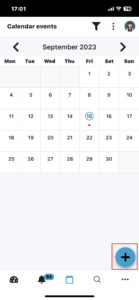
- Calendar will indicate course completion dates
- You can also add an event to remind yourself to work on course tasks
I don’t see course progress or status up-to-date sometimes
- It may take a few minutes for accurate course progress (% completion, mark as “Complete” or “In Progress”
- To instantly refresh your page, drag your page down
- You will see the refresh/circle icon show up for a second and the page will refresh
I can’t see a certificate after completing a course
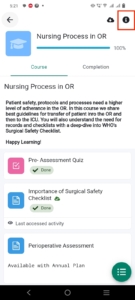
- If your course’s status is marked as “Complete”, you can access the certificate in the information section of the course
- You can view, download or share (email, save in your online storage)
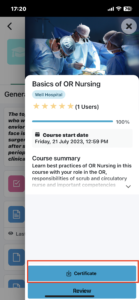
Note:
- Certificate will be awarded for completing a course if your organization has subscribed to the annual plan
- If you are in a trial version or in pilot version, you will not receive a certificate
How can I change my password?
1. Go to the login page
2. If you are already using the app, click Logout from your profile picture menu options
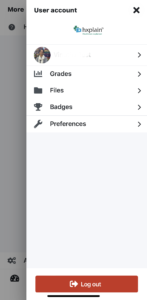
3. Use the “Forgotten your username and password” link, follow instructions and create a new password